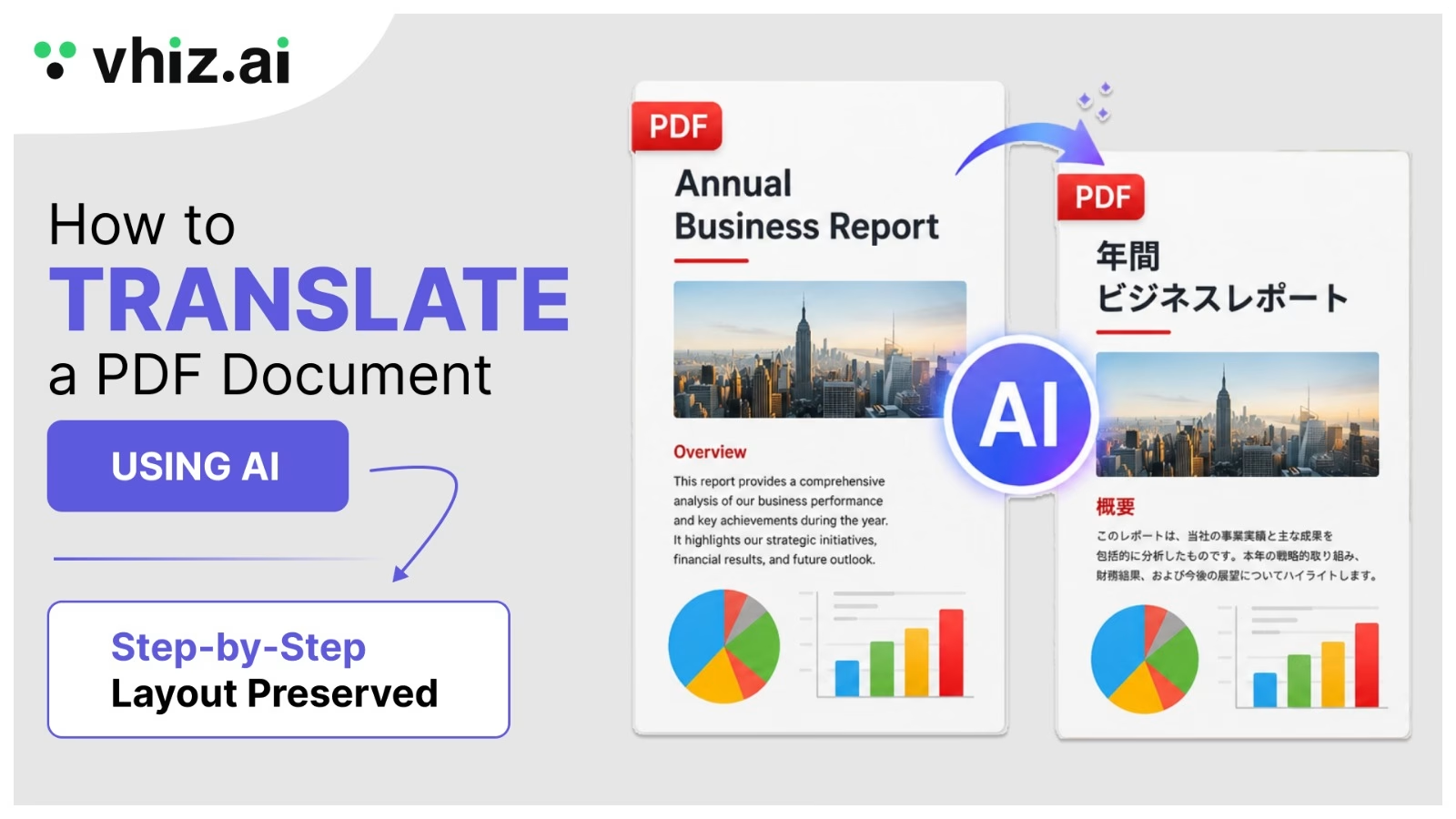

how to translate a PDF with AI is the single fastest way to break the language barrier on any document without losing a single column, table, image, or heading in the process. The right tool handles everything: text recognition, translation, and layout reconstruction in one automated step.
At Vhiz AI, we track 111+ AI tools across 14 categories. We tested the leading AI PDF translators on real documents contracts, academic papers, scanned manuals and this guide reflects what genuinely works. You can explore all the tools we track at vhiz AI.
What Is AI PDF Translation?
AI PDF translation is the process of using artificial intelligence specifically neural machine translation (NMT) models combined with document layout analysis to convert text inside a PDF from one language to another while maintaining the original formatting and visual structure.
The critical difference between an AI PDF translator and simply pasting text into any AI tool is layout intelligence. A dedicated PDF translator understands exactly where each word sits on the page, what column it belongs to, how tables are structured, and where headers and footers live so the translated output looks like the document was written in the target language from the start.
Key Definition: AI PDF translation combines OCR (Optical Character Recognition), neural machine translation, and document layout analysis into one automated pipeline. The output is a translated document that matches the original formatting, not a block of translated text.
This is what separates a true AI PDF translator from general-purpose tools like ChatGPT or Google Translate. The latter tools handle text. The former handles documents a meaningfully different problem. If you are exploring AI tools that can handle document-level tasks, our AI productivity tools directory covers the leading options across this category.
2. Why Layout Preservation Matters
PDF documents are format-locked by design. Unlike a Word document where text reflows automatically, a PDF places every element every word, image, line, and table at a precise coordinate on the page. Translate the text without accounting for that spatial map and you get scrambled columns, missing headers, broken tables, and overlapping text.
For professional documents, broken formatting is not an inconvenience. It is a serious problem. A clause that wraps onto the wrong line in a legal contract can change its meaning. A table where column headers and data rows become misaligned produces incorrect information. A technical diagram caption that detaches from its image loses all context.
Warning: Never use a plain text translator for legal, medical, financial, or technical PDF documents. The formatting disruption can alter meaning and create compliance or liability issues. Always use a dedicated AI PDF translator that explicitly lists layout preservation as a core feature.
Different document types have different translation challenges. Multi-column magazine layouts, academic papers with footnotes, financial reports with embedded charts, and government forms with precisely placed fields all require tools that understand structure, not just vocabulary. Browse our AI business tools and AI writing tools categories for tools that handle these workflows end-to-end.
3. How AI PDF Translation Works (4 Stages)
Modern AI PDF translators run a four-stage pipeline that most users never see directly. Understanding it helps you choose the right tool for your specific document type and diagnose issues when translation quality falls short.
Stage 1: Document Parsing and OCR
The tool first determines what kind of PDF it is dealing with. A native PDF contains selectable text embedded in the file structure the AI reads this directly. A scanned PDF is a photograph of a document, containing no selectable text. For scanned files, the tool must first run OCR to recognize characters in the image layer before any translation can begin.
This is why scanned PDFs require a different category of tool. If you skip OCR, the translation engine has nothing to read. Tools like Adobe Acrobat, Smallpdf, and Doctranslator handle both types transparently. Google Translate and DeepL handle only native PDFs.
Stage 2: Layout Analysis
Once text is extracted, the AI maps the structure of each page. It identifies text columns, image positions, table boundaries, header and footer regions, captions, footnotes, and page numbers. This spatial map is what allows the translated output to place content in the correct position matching the original layout even when translated text is longer or shorter than the source.
German text, for example, is typically 20 to 30 percent longer than its English equivalent. A dedicated PDF translator adjusts font size, line spacing, and text flow to accommodate this difference within the original layout boundaries. Generic text translators simply overflow or truncate.
Stage 3: Neural Machine Translation
Extracted text segments are passed to a neural machine translation engine. Depending on the tool, this uses DeepL’s proprietary neural networks, OpenAI’s GPT models, Google’s NMT stack, or proprietary translation engines. Modern NMT models translate sentence by sentence while preserving context across paragraphs producing natural-sounding output rather than word-for-word substitution.
Stage 4: Document Reconstruction
Translated text segments are placed back into the original layout coordinates. The tool reconstructs the document page by page, maintaining column structures, table cell alignment, image placements, and font styling where possible. The output is a new PDF that mirrors the source document visually while containing translated text.
Pro Tip: Before translating a full document, run a single-page test first. This lets you verify layout preservation and translation quality without waiting for the entire document to process and without burning your free tier allowance on a tool that may not fit your document type.
4. Step-by-Step: How to Translate a PDF with AI
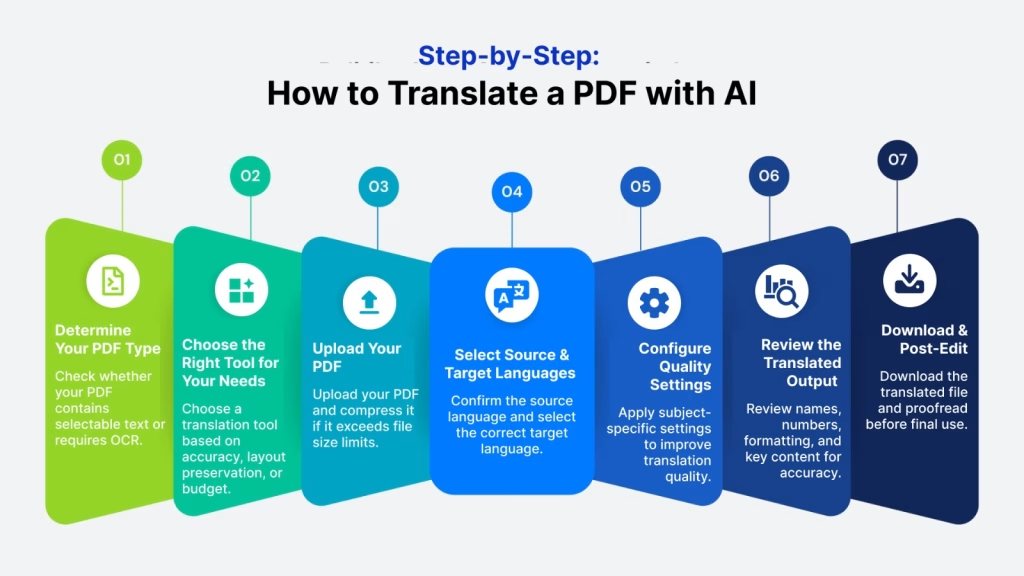
Step 1: Determine Your PDF Type
Open your PDF and try to select text by clicking and dragging. If you can highlight text, it is a native PDF any tool on the comparison table will work. If you cannot select text, it is a scanned document and you need a tool with OCR: Adobe Acrobat, Smallpdf, or Doctranslator.
Step 2: Choose the Right Tool for Your Needs
Match your tool to your priority. For documents where layout accuracy matters most, Adobe Acrobat or Smallpdf are excellent choices. When translation accuracy is your top priority, especially for European languages, DeepL delivers outstanding results. Users looking for a free solution with OCR and layout preservation should choose Doctranslator. For the highest level of professional quality, regardless of budget, Adobe Acrobat AI Translate remains the strongest option.
Step 3: Upload Your PDF
Most tools accept drag-and-drop or file picker upload. File size limits vary: Google Translate accepts up to 10MB, DeepL accepts up to 5MB on free and 100MB on paid plans, Adobe Acrobat handles files of several hundred megabytes. If your PDF exceeds the limit, compress it using a PDF compression tool or split it into sections before uploading.
Step 4: Select Source and Target Languages
Most tools auto-detect the source language. Manually confirm it is correct, especially for documents with mixed language sections. For the target language, select precisely for example, choose “Portuguese (Brazil)” versus “Portuguese (Portugal)” if regional dialect matters for your use case.
Step 5: Configure Quality Settings
When available, always configure domain or subject matter settings. Select “Legal,” “Medical,” or “Technical” modes to activate specialized terminology databases this dramatically improves accuracy for professional vocabulary. Select formal vs. informal register based on your document’s context.
Step 6: Review the Translated Output
Once processing completes, review the output against the original. Always check: proper nouns and brand names (AI often mistranslates these), numbers in tables (verify no digits changed), critical clauses in legal documents, and header and footer content. For scanned documents, also check the OCR accuracy errors in text recognition become translation errors downstream.
Step 7: Download and Post-Edit
Download the translated PDF. For internal reference or informal use, the AI output is typically ready to use. For professional, published, or legally binding documents, have a native-speaking subject matter expert review and correct the AI translation before the document is used formally.
Workflow Tip: Many professionals use AI PDF translation as a 90% complete first draft that a native speaker then polishes. This is dramatically faster than translating from scratch and more cost-effective than full human translation typically saving 60 to 80 percent of traditional translation cost and time.
5. Best AI PDF Translators Compared (2026)
| Tool | Free Plan | Layout Preserved | OCR / Scanned PDF | Best For | Starting Price |
| Adobe Acrobat AI | Trial only | Yes | Yes | Professional docs, legal | $14.99/month |
| DeepL | Yes (3/mo) | Partial | No | High accuracy EU languages | $8.74/month |
| ChatGPT (GPT-4o) | Limited | No | Via plugin | Flexible AI workflows | $20/month |
| Smallpdf | Yes (2/mo) | Yes | Yes | Quick online translation | $9/month |
| Doctranslator | Yes | Yes | Yes | Free with layout & OCR | Free / paid |
| Google Translate | Yes | Partial | No | Quick informal drafts | Free |
| DeepL API | No | Yes | No | Developers / bulk use | $5.49/month |
Adobe Acrobat AI Translate
Adobe Acrobat AI Translate is the professional standard for PDF translation. It handles the most complex document layouts, multi-column pages, tables with merged cells, embedded images with captions, form fields and reconstructs them faithfully in the translated output. OCR is built in, making it the strongest option for scanned documents and legacy files. Supports 40+ languages with formal and informal register selection.
Cost: Starting at $14.99/month as part of an Adobe Acrobat subscription. For organizations translating documents regularly, this is the most defensible professional investment in this category.
DeepL Document Translation
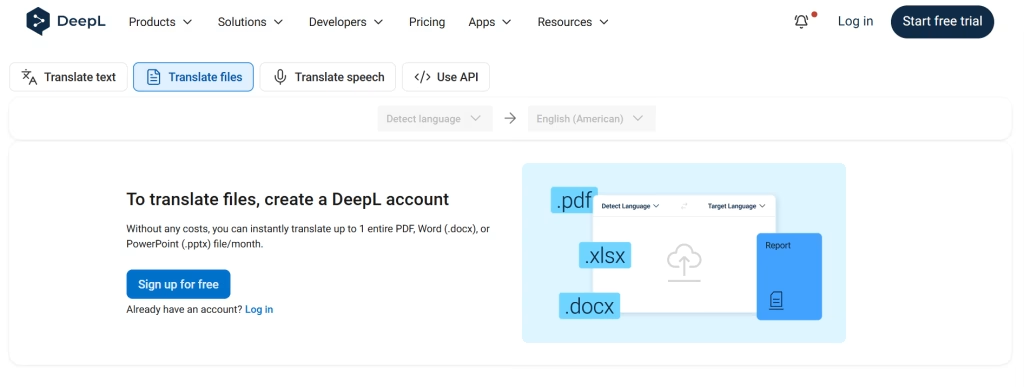
DeepL consistently ranks as the most accurate neural machine translator for European language pairs. Its document translation supports PDF and Word file upload. The free tier allows 3 document translations per month at up to 5MB per file. Layout preservation is strong for straightforward single-column documents but can falter on complex multi-column layouts. No OCR supports native PDFs only.
ChatGPT for PDF Translation
ChatGPT Plus (GPT-4o) can translate PDF content when you upload the file directly. Translation quality is strong, particularly for nuanced, contextually rich content. The significant limitation: ChatGPT outputs plain translated text without any layout reconstruction. It does not produce a formatted PDF. For workflows where you need translated content quickly and formatting is not critical, it is a capable option. For document-level workflows where structure matters, it is not the right tool. If you are evaluating AI chatbots more broadly, our comparison of ChatGPT vs Claude vs Gemini covers the full landscape.
Smallpdf Translate
Smallpdf offers a clean, beginner-friendly online PDF translator with layout preservation and OCR built in. Two free translations per month on the free plan. Translation accuracy is powered by DeepL’s engine in the background, making quality solid for general content. The interface is the simplest of the professional options upload, select language, download. Starting at $9/month for unlimited use.
Doctranslator
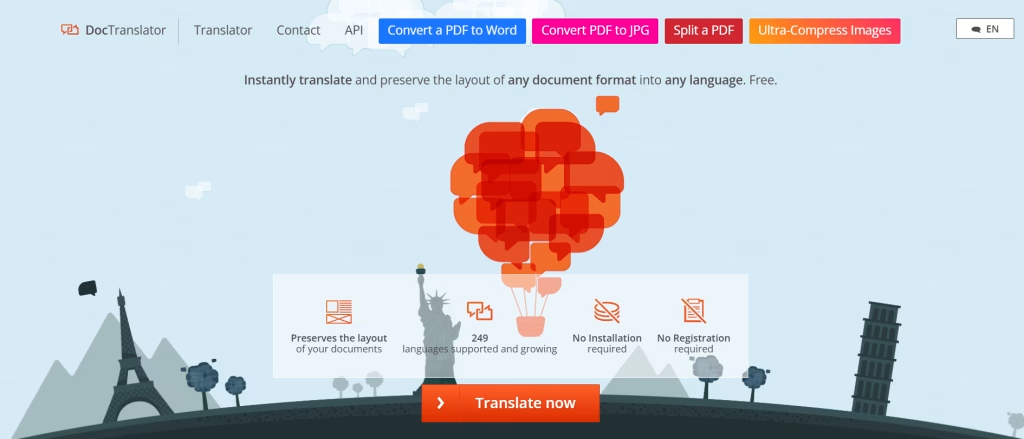
For users who need a completely free AI PDF translator with layout preservation and OCR, Doctranslator is the standout option. It handles PDF, Word, Excel, and PowerPoint files, supports scanned documents with OCR, and produces layout-preserved output at no cost for basic files. Translation accuracy is below DeepL’s level, but for personal use, student research, or non-critical professional documents, it delivers genuinely useful results without any subscription.
Google Translate for PDF Documents
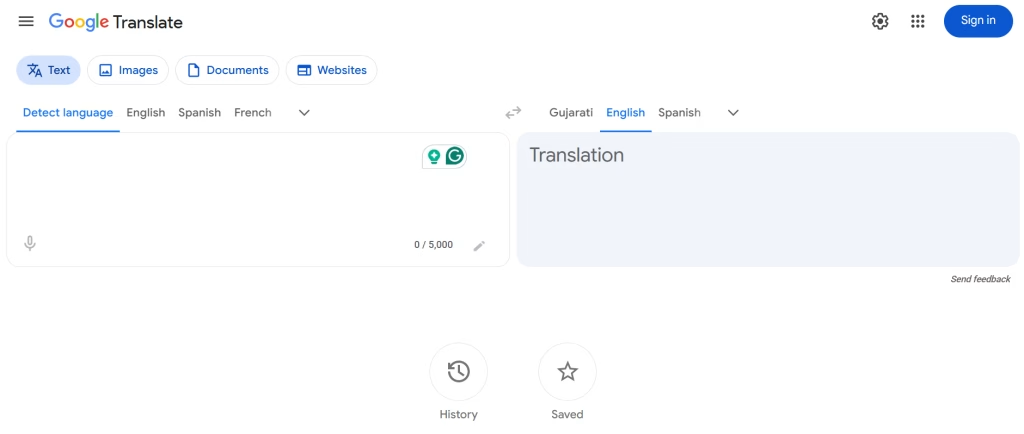
Google Translate is the most accessible starting point: completely free, unlimited, and requires no account. Go to translate.google.com, click Documents, upload your PDF, select languages, and download the result. Strengths: free, fast, 133+ languages, zero setup. Weaknesses: complex layouts often break, no OCR for scanned files, 10MB file size cap, accuracy for specialized vocabulary is lower than DeepL.
6. Free PDF Translation Options: What They Actually Deliver
Free AI PDF translation is real and useful for a broad range of use cases. Here is an honest breakdown of what each free option actually delivers without the marketing language.
Google Translate Document Upload – Free, Unlimited
Best for: Quick understanding of foreign documents, simple text-heavy files, informal personal use. The tool works consistently for straightforward PDFs with single-column text. Where it fails: complex layouts (multi-column, tables, forms), scanned files, and technical or legal vocabulary. File size limit of 10MB is the most common practical constraint. Despite limitations, for getting the gist of a document quickly, Google Translate is the fastest zero-friction option available.
DeepL Free Tier – 3 Documents Per Month
Best for: Users who need high accuracy on 1 to 3 documents per month in European languages. DeepL’s neural translation engine produces the most natural-sounding European language output of any free option. 5MB file size limit per document on the free tier. No OCR native PDFs only. The quality difference between DeepL and Google Translate is noticeable on any document with nuanced vocabulary, formal register, or technical terminology.
Smallpdf Free Plan – 2 Documents Per Month
Best for: Users who need layout preservation and OCR without paying. Smallpdf’s free tier gives 2 full PDF translations per month with layout preserved output and OCR included. The translation quality uses DeepL’s engine. This is the strongest free option for users who need professional-looking translated output on a limited volume.
Doctranslator – Free with No Monthly Limit
Best for: Users who need frequent free PDF translation with layout preservation and OCR. Doctranslator does not cap the number of free document translations; it is free for basic use regardless of volume. Translation accuracy is below DeepL, but layout preservation and OCR are included at no cost. For students, researchers, and small business owners handling occasional document translation without budget, this is the strongest all-in-one free option.
Best Free Setup: Use DeepL’s free 3-document monthly allowance for documents where accuracy matters most, and Doctranslator for additional volume or scanned files. This combination covers most personal and light professional translation needs at zero cost.
7. How to Translate a Scanned PDF with AI
Scanned PDFs are a distinct challenge that catches many users off guard. A scanned PDF is essentially a photograph of a document that contains no selectable text for a standard translator to read. To translate a scanned PDF, you need a tool with integrated OCR that first converts the image of text into actual text characters before translation begins.
Why Standard Translators Fail on Scanned PDFs
When you upload a scanned PDF to Google Translate or DeepL, one of two things happens: the tool returns an empty translation, or it attempts to translate metadata and returns garbled output. Neither tool runs OCR; they read the file’s text layer, which is empty in a scanned document. This is not a bug; it is a fundamental limitation of tools built for native PDFs.
Warning: Do not upload scanned PDFs to Google Translate or DeepL without running OCR first. You will get no useful translation output. Use Adobe Acrobat, Smallpdf, or Doctranslator for scanned documents all three include OCR as part of the translation pipeline.
Step-by-Step: Translating a Scanned PDF
- Verify the PDF is scanned by opening it and attempting to select text. If you cannot highlight any text, it is a scanned document.
- Choose an OCR-capable tool: Adobe Acrobat AI Translate (best quality), Smallpdf (best free with OCR for 2 files/month), or Doctranslator (free, no monthly limit, OCR included).
- Check your scan quality before uploading. Scans at 300 DPI or higher produce significantly better OCR accuracy than lower resolution or smartphone camera captures. Blurry or skewed pages reduce OCR confidence and produce translation errors downstream.
- Upload the scanned PDF and let the tool run OCR and translation in a single step. Tools like Adobe Acrobat handle both automatically without requiring a separate OCR step from the user.
- Review the OCR output carefully before accepting the translation. Character recognition errors in the source text a “0” misread as “O,” or a “1” misread as “l” propagate directly into the translated output as incorrect information.
8. How to Use Google Translate for PDF Documents
Google Translate is the most commonly used free PDF translator for good reason: it costs nothing, requires no account, and handles 133+ languages. Here is the precise process, along with where it works and where it does not. For tools designed specifically for AI-powered content workflows, also see our AI marketing tools roundup.
Exact Steps for Google Translate PDF Upload
- Go to translate.google.com in your browser.
- In the top navigation, click “Documents” it appears next to “Text” and “Images.”
- Click “Browse your computer” and select your PDF file. Maximum file size: 10MB.
- The source language auto-detects. Confirm it is correct, then select your target language from the dropdown.
- Click “Translate.” Processing time is typically 5 to 30 seconds depending on document length and complexity.
- Once complete, click “Download translation” to save the translated PDF to your device.
When Google Translate PDF Works Well
- Simple, single-column text documents with minimal formatting
- News articles, blog posts, or simple letters saved as PDF
- Quick reference translation where exact formatting is not required
- Documents under 10MB with primarily text content
When Google Translate PDF Falls Short
- Scanned documents – Google Translate cannot read image-based text
- Multi-column layouts – columns often merge or overlap in the output
- Tables – cell alignment frequently breaks in complex table structures
- Legal, medical, or technical vocabulary – accuracy is meaningfully lower than DeepL
- Documents over 10MB – file upload will be rejected
Google Translate Verdict: For informal, personal use on simple text-heavy PDFs, Google Translate is the right starting point – fast, free, and zero friction. For any professional document where layout or terminology accuracy matters, move to DeepL, Smallpdf, or Adobe Acrobat.
9. Pro Tips for Better AI PDF Translation Accuracy
Getting excellent output from an AI PDF translator is partly about tool choice and partly about preparation and review. These practices consistently produce better results across all tools.
Before You Upload
- Verify the PDF is not password-protected. Most translators cannot process encrypted files. Remove password protection first using Smallpdf or Adobe Acrobat’s unlock feature.
- For scanned documents, use the highest quality scan available. 300 DPI minimum. Blurry or angled scans degrade OCR accuracy significantly.
- Split very large PDFs into sections if they exceed the tool’s file size limit. This also speeds up processing and makes review more manageable.
- Flatten any form fields or annotations before uploading. Interactive PDF elements can interfere with text extraction.
During Translation
- Always use subject matter or domain settings when available. “Legal,” “Medical,” and “Technical” modes use specialized vocabulary databases that dramatically improve terminology accuracy in those fields.
- Select formal register for business, legal, and official documents. Select informal register for personal communications or marketing content where tone matters.
- For right-to-left target languages like Arabic, Hebrew, or Persian, verify the tool explicitly supports RTL layout adjustment. Not all tools handle RTL output correctly.
- Be aware that text length varies significantly across languages. Chinese and Japanese use far fewer characters than English for the same content. German
After Translation – What to Review First
- Proper nouns, brand names, and organization names – AI frequently mistranslates or incorrectly transliterates these.
- All numbers in tables and financial data – verify no digits changed or transposed during processing.
- Critical clauses in legal or contractual documents – read these aloud in the target language to catch meaning shifts.
- Headers and footers – often handled less accurately during document reconstruction.
- Footnotes and citations – these are high-priority in academic documents and are frequently misplaced during PDF reconstruction.
Accuracy Reality Check: State-of-the-art AI PDF translation achieves 85 to 95 percent accuracy for major language pairs and general content. For legal contracts, medical records, patents, and highly technical specifications, always have a native-speaking subject matter expert review the AI output before the document is used formally.
10. Who Needs AI PDF Translation?
The use cases for AI PDF translation span virtually every professional context and audience. Here is how different user types approach it – and which tools match each profile. If you are evaluating the broader AI tool landscape for your workflow, the Vhiz AI tools directory covers 111+ tools across 14 categories with honest, hands-on comparisons.
| User Type | Recommended Tool | Reason |
| Entrepreneur / Business Owner | DeepL or Adobe Acrobat | Accuracy + layout for contracts and partner agreements |
| Content Creator / Marketer | DeepL + ChatGPT | Speed and fluency for campaign briefs and research |
| Developer | DeepL API or Adobe | Technical accuracy for API docs and specifications |
| Student / Researcher | Doctranslator (free) | Free with layout preservation and OCR for academic papers |
| Agency | Adobe Acrobat | Professional-grade output for client deliverables |
| AI Beginner | Google Translate | Zero learning curve for quick informal document reads |
For Entrepreneurs and Business Owners
Supplier contracts, partnership agreements, regulatory filings, and international market research regularly arrive in foreign languages. AI PDF translation reduces the turnaround from days to minutes on documents that previously required a professional translation service. For business owners building AI into their operational workflows, our AI business tools directory lists the most effective tools in this category.
For Marketers and Content Creators
Campaign briefs from international clients, competitor research from foreign markets, and industry reports published in other languages are daily realities for marketers at global agencies. AI PDF translation integrates directly into research and strategy workflows. For marketers already using AI in their stack, our roundup of the best AI marketing tools covers tools that pair well with document translation in a content workflow.
For Developers and Technical Teams
API documentation, technical specifications, government compliance documents, and localization materials for software products all arrive in multiple languages. For developers integrating translation into applications, DeepL’s API and Adobe’s document processing API offer the cleanest programmatic access. Our AI code tools directory covers the leading AI development tools available in 2026.
For Students and Researchers
Academic papers, foreign language study materials, journal articles, and thesis references regularly require translation for research workflows. Doctranslator and Google Translate cover most student needs at no cost. For researchers building comprehensive AI tool knowledge, our ChatGPT vs Claude vs Gemini comparison helps identify which AI models best support research-intensive workflows.
11. Frequently Asked Questions
Can AI translate a PDF without losing formatting?
Yes. Dedicated AI PDF translators like Adobe Acrobat AI Translate, Smallpdf, and Doctranslator are designed specifically to preserve the original layout, fonts, columns, tables, and images while translating text. Generic tools like Google Translate preserve layout only partially. For professional documents, always use a dedicated AI PDF translator rather than pasting text into a chatbot.
What is the best free AI PDF translator online?
The best free options in 2026 are: Doctranslator (free, layout preserved, OCR included), DeepL free tier (3 documents per month, high accuracy), Google Translate (unlimited, free, partial layout only), and Smallpdf free plan (2 documents per month with layout and OCR). For scanned PDFs specifically, Doctranslator and Smallpdf are the strongest free choices.
How do I translate a scanned PDF with AI?
Scanned PDFs are images of text, not selectable text. You need a tool with built-in OCR. Use Adobe Acrobat AI Translate, Smallpdf, or Doctranslator all include OCR that reads image-based text before translating. Do not upload scanned PDFs to Google Translate or DeepL they cannot read image-only files and will either error or return no translation.
Can ChatGPT translate a PDF document?
Yes, ChatGPT Plus (GPT-4o) can translate PDF content you upload. However, it does not preserve the original PDF layout or formatting it outputs plain translated text. For simple documents where formatting does not matter, ChatGPT works. For professional documents, contracts, or anything with important layout elements, use a dedicated AI PDF translator.
Is Google Translate good for PDF translation?
Google Translate is free and works well for simple, text-heavy PDFs. Go to translate.google.com, click Documents, upload your PDF, select target language, and download the result. Key limitations: 10MB file size cap, no OCR for scanned files, complex layouts often break, and accuracy for legal or technical vocabulary is lower than DeepL or dedicated AI PDF translators.
How do I translate a PDF to English for free?
Three proven free methods: (1) Google Translate document upload at translate.google.com free, unlimited, partial layout. (2) DeepL free tier 3 documents per month, best accuracy. (3) Doctranslator.com free, layout preserved, OCR for scanned files. For scanned PDFs specifically, Doctranslator is the only fully free option with OCR included.
How accurate is AI PDF translation?
Modern AI PDF translation achieves 85 to 95 percent accuracy for major language pairs and general content. DeepL consistently ranks highest for European languages in independent accuracy benchmarks. For specialized legal, medical, patents, or technical documents, always have a native-speaking subject matter expert review the AI output before the document is used formally.
What languages do AI PDF translators support?
Google Translate supports 133+ languages. DeepL supports 31 languages with best quality for European pairs. Adobe Acrobat AI Translate supports 40+ languages. ChatGPT covers most major world languages including Arabic, Chinese, Hindi, Japanese, Korean, and others. For right-to-left languages like Arabic and Hebrew, verify the tool supports RTL layout adjustment in the output.
Conclusion
For free use, the combination of DeepL’s free tier (highest accuracy, 3 documents per month) and Doctranslator (unlimited, layout preserved, OCR included) covers the widest range of needs at no cost. For professional use, Adobe Acrobat AI Translate is the strongest single tool available, handling complex layouts, scanned documents, and 40+ languages with formal register control.
Whichever tool you choose, the workflow is the same: verify your PDF type, configure domain settings, review critical sections manually, and use human review for any document with legal or professional stakes. AI translation handles the 90 percent. Expert human review covers the remaining 10 percent that matters most.